Message & Mail Configuration
Configure email notifications, subject lines, message content, and attachments for the Position component.
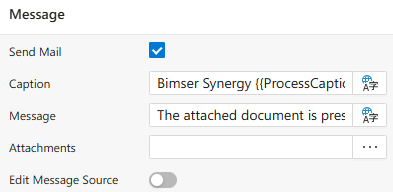
Send Mail
When a workflow step reaches the related Position component, the system automatically sends an email notification to the assigned user, informing them that an approval request has been created.
- If you
don’t want emails to be sent, you can disable this option by unchecking theSend Mailfield. - This feature is commonly used in
test scenariosto prevent sending unnecessary emails during workflow testing.
TIP:
Instead of disabling email notifications for each object manually, you can globally disable emails for the entire workflow via:
Flow Properties → General → Disable Email Sending
Caption
Specifies the subject line of the email sent to the assigned user.
- By default, the subject contains the following system parameters:
ProcessCaption→ The title of the processFirstName→ The recipient’s first nameLastName→ The recipient’s last name
Default Subject Example:
Developers can customize the email subject as needed.
Message
Defines the body content of the email sent to the assigned user.
- A
default messageis automatically provided by the system. - This text can be customized to suit your workflow’s communication needs.
Attachments
Allows adding file attachments to the email notification.
- You can select and attach relevant documents that should be included in the approval request email.
When the Attachments field is clicked, a configuration screen opens where you can select and define the type of attachment to be included in the outgoing email.
Use Case Example:
If you want to send related documents, reports, or any additional files along with the approval request email, you can configure them in this section.
#importAfterCompile(DeveloperGuides.IDE.Modals.Attachments)
The Edit Message Source option is used when a custom email template needs to be sent to the user assigned in the Position component instead of the default system message.
When this feature is enabled, the Source Message field becomes visible.
Source Message
- Opens the screen where the
default email templateis displayed inHTML format, allowing you to modify it. - Any designed template changes can be instantly previewed in the
real-time preview window.
#importAfterCompile(DeveloperGuides.IDE.Modals.MailTemplate)